
Subscription
The Subscription page is where you follow your organization’s costs, set a budget alert, download invoices, and manage your payment method. Pricing is usage-based: your plan includes a volume of resources (CPU, memory, storage, registry, clusters), and only the consumption beyond that included volume is billed, monthly in euros.
Open the Subscription page
Section titled “Open the Subscription page”- Open the organization menu in the dashboard sidebar (the organization name at the top of the navigation).
- Under the Manage section, click Subscription.
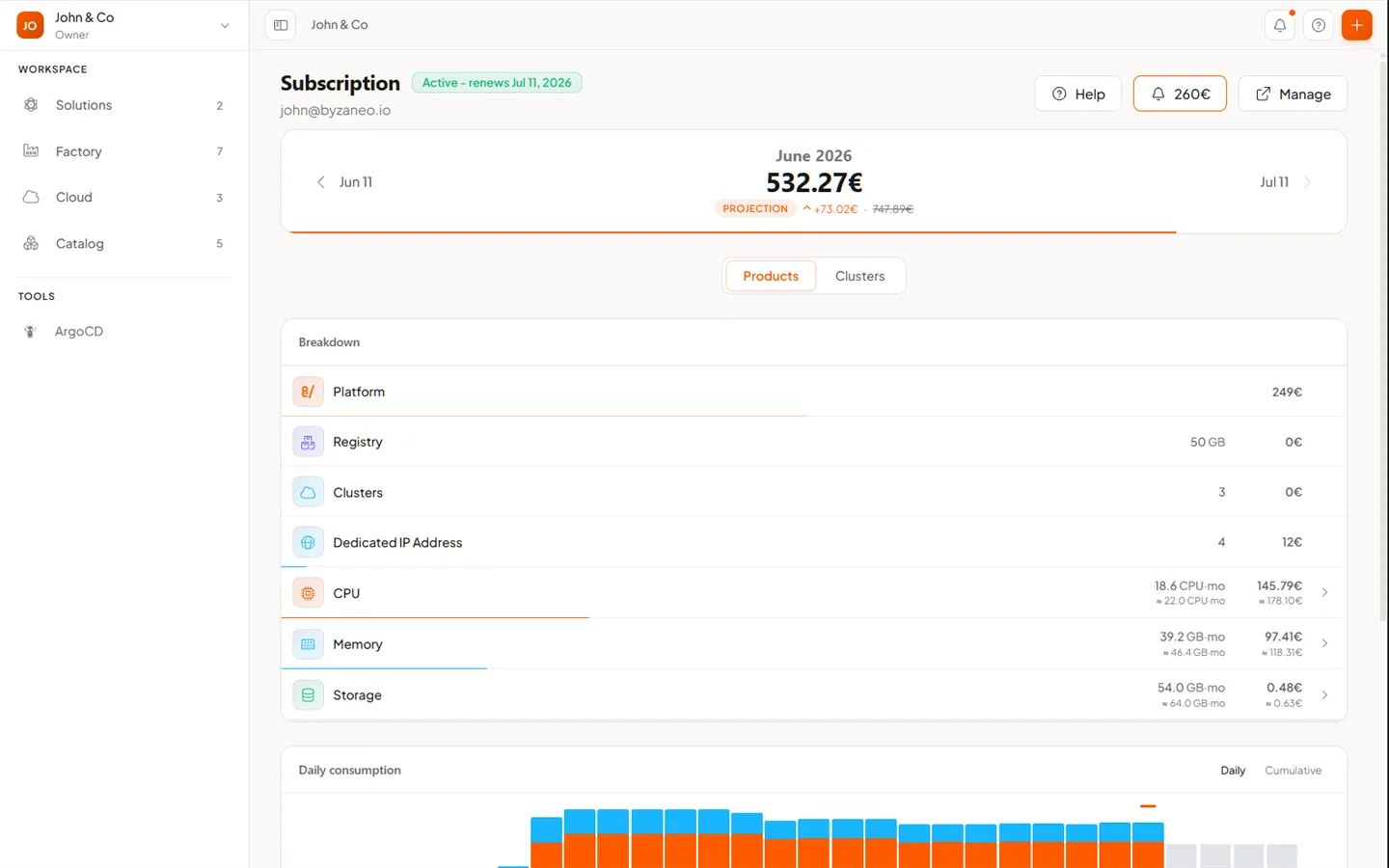
The header shows your current status and the Owner’s email, with three actions: Help (this guide), Alerts (set a budget alert) and Manage (open the billing portal).
Subscription status
Section titled “Subscription status”| Status | Meaning |
|---|---|
| Active | Your subscription is running and renews on the displayed date. |
| Free trial | You are in the trial period, which ends on the displayed date. |
| Past due | A payment failed; a new attempt is scheduled. Check your card. |
| Unpaid | An invoice remains unpaid. Update your payment method. |
| Paused | The subscription is paused and resumes on the displayed date. |
| Canceled | The subscription has ended. |
| Incomplete | Setup did not finish; it expires on the displayed date. |
Understand your costs
Section titled “Understand your costs”The reporting section breaks down the current billing period. Use the month navigation to move between periods.
- Projection is the estimated amount at the end of the current period, based on your usage so far. For a closed period without a final invoice yet, you see an Estimate instead.
- The Breakdown lists each billed item. Stable, single-value products come first — Platform (the base fee), Registry, Clusters, and dedicated add-ons — followed by the usage-metered products: CPU, Memory, and Storage. Switch the view between Products and Clusters to group costs either way.
- Daily consumption charts your usage day by day. Toggle between Daily (per-day spikes) and Cumulative (running total) to read it the way you prefer.
Read the metered lines
Section titled “Read the metered lines”Metered resources are measured like energy on a power meter: keeping 1 CPU provisioned for a full month consumes 1 CPU·mo (CPU-month), just like a 1 kW appliance running for an hour consumes 1 kWh. Each metered line carries two figures:
- the first line is your real consumption to date — the resources actually provisioned since the start of the period, and the cost actually accumulated;
- the second line (
≈) is the month-end projection — where the quantity and the cost will land if your usage stays stable.
Your plan includes a volume of resources; only the consumption beyond it is billed. Included volumes are a credit, not a cap — nothing throttles your workloads when you go past them.
Expand a metered line (or an environment in the Clusters view) to see the same real/projected pair for each cluster or product underneath.
Set a budget alert
Section titled “Set a budget alert”Get notified when your monthly cost is about to exceed a threshold you choose.
- Click Alerts in the header.
- In the Budget alert panel, slide the Threshold cursor to your limit (between 250 € and 5000 €).
- Optionally turn on Also notify admins so every admin is alerted alongside the Owner.
- Click Save.
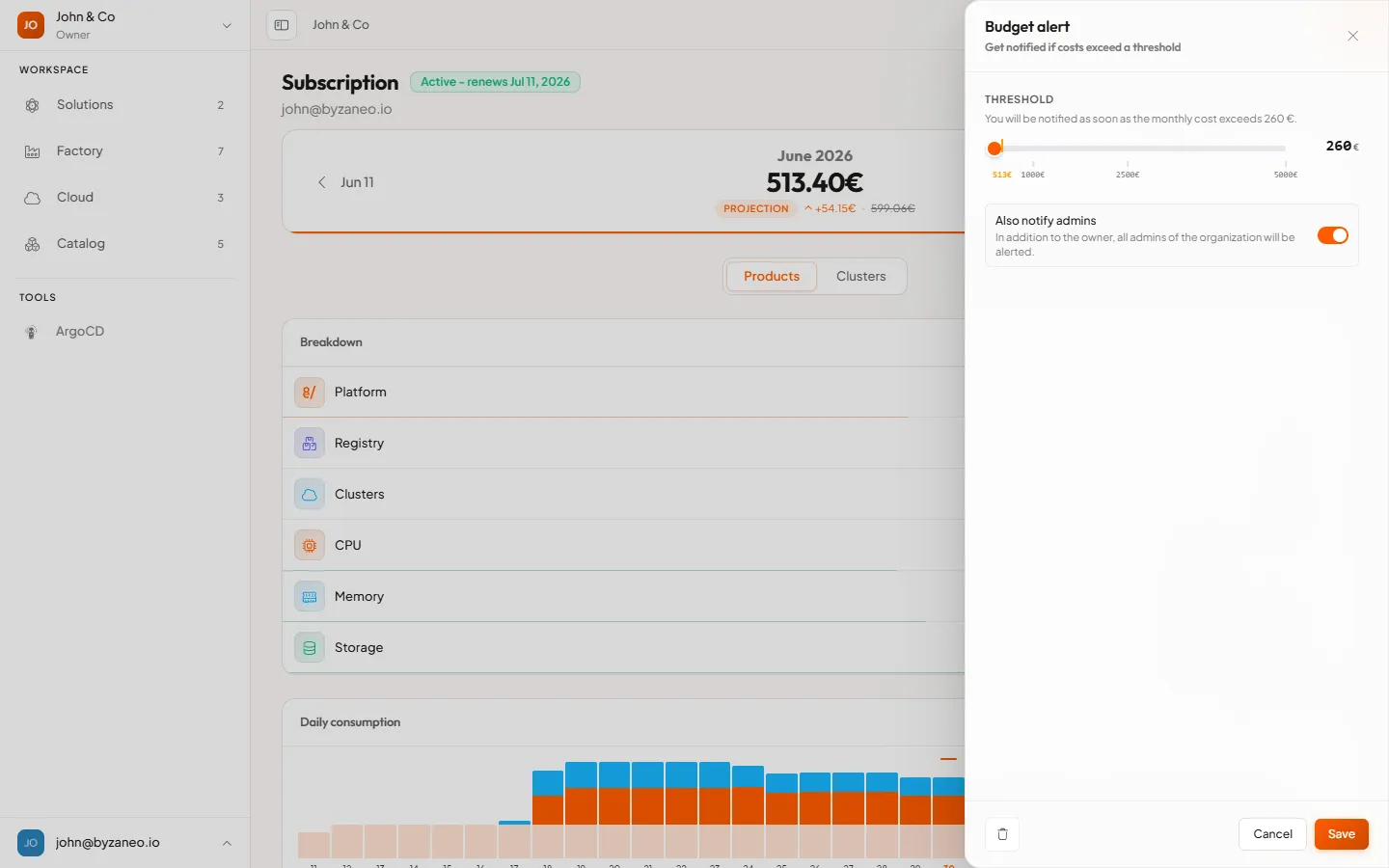
You are notified as soon as the amount of the upcoming invoice crosses the threshold. To turn the alert off again, open the panel and use Remove alert.
Invoices
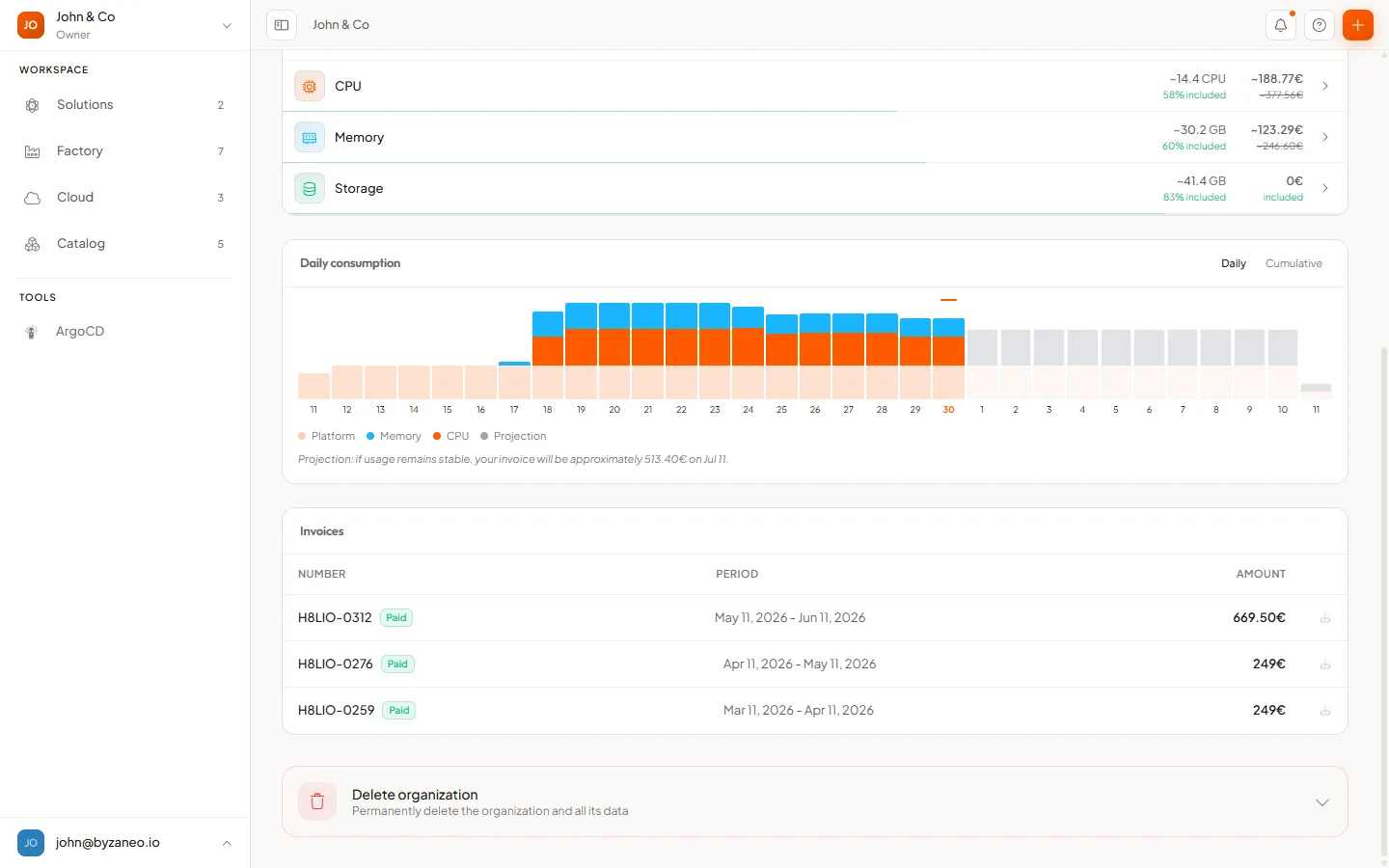
Section titled “Invoices”The Invoices section lists your billing history.
- Each row shows the invoice Number, the Period it covers, the Amount, and a status: Paid, Open (amount still due), Draft (not finalized), or Void.
- Click the download icon to get the PDF, or click the row to open the invoice in the billing portal.
Manage billing and payment
Section titled “Manage billing and payment”Click Manage in the header to open the secure billing portal in a new tab. From there you can:
- update your payment method (card),
- review and download invoices and receipts,
- manage your subscription details.
Delete the organization
Section titled “Delete the organization”At the bottom of the page, Delete organization permanently removes the organization and everything in it (repositories, clusters, services, catalog, monitoring, and the subscription).
To proceed, you type the organization name to confirm, then the platform runs a guided cleanup that cancels the subscription and removes every resource.