
Quickstart
This walkthrough takes you from signing up to a first application deployed. It assumes you are the Owner of a new organization. New to the vocabulary? Skim Core concepts first.
1. Create your organization
Section titled “1. Create your organization”After you sign up, you are asked to create your organization: a display name and a short identifier (lowercase letters, numbers, and dashes) used in URLs and cluster names. You then add a payment method to start your free trial, no charge is taken upfront.
h8lio provisions your workspace, your Git, CI, container registry, a first cluster, and monitoring, then drops you on the dashboard.
2. Invite your team
Section titled “2. Invite your team”Bring in collaborators whenever you are ready, assigning each a role (Admin, Developer, or Operator). This is optional this early, but handy. See Team management.
3. Create your first service
Section titled “3. Create your first service”Everything you create starts from the Create button at the top right.
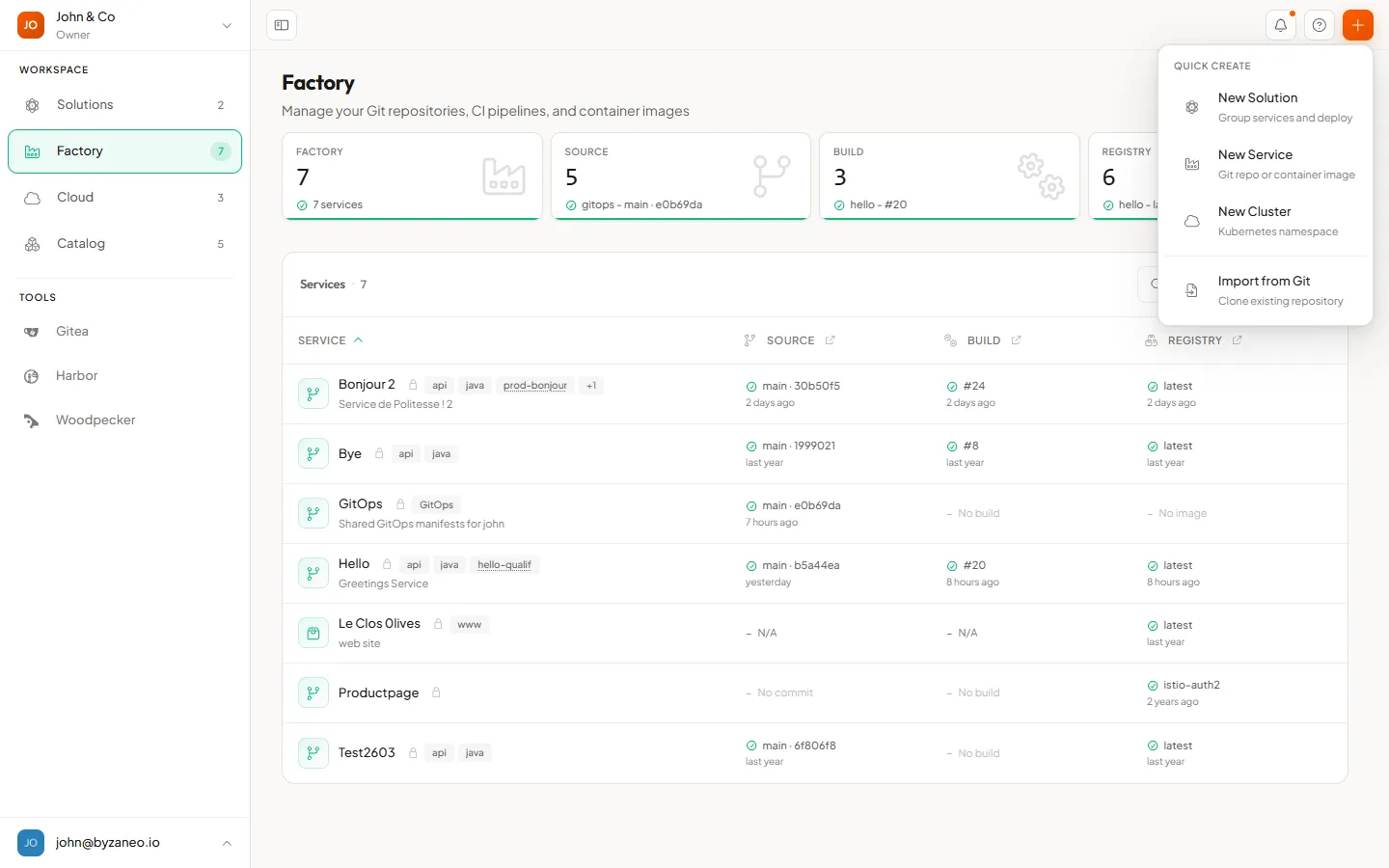
Choose New Service to add a source of code or images in Factory:
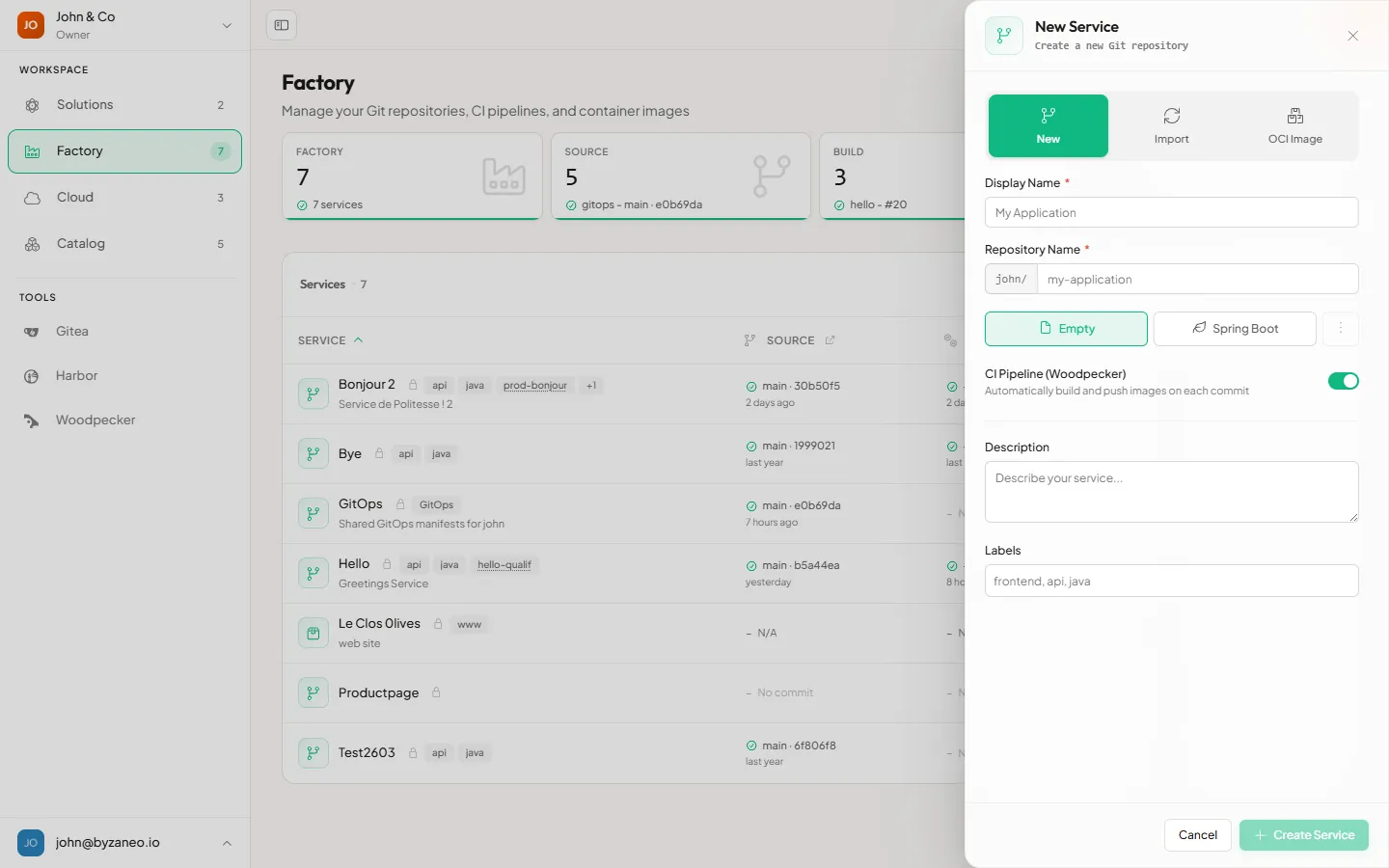
- New scaffolds a fresh Git repository. Pick a template (Empty, or a starter such as Spring Boot) and keep CI Pipeline on to build and push an image on every commit.
- Import clones an existing repository.
- OCI Image references an existing container image.
Enter a Display Name (the repository name fills in automatically), then click Create Service.
Your service now lives in Factory with its Git repository, CI pipeline, and registry wired together. Push a commit and the pipeline builds your image.
4. Deploy with a Solution
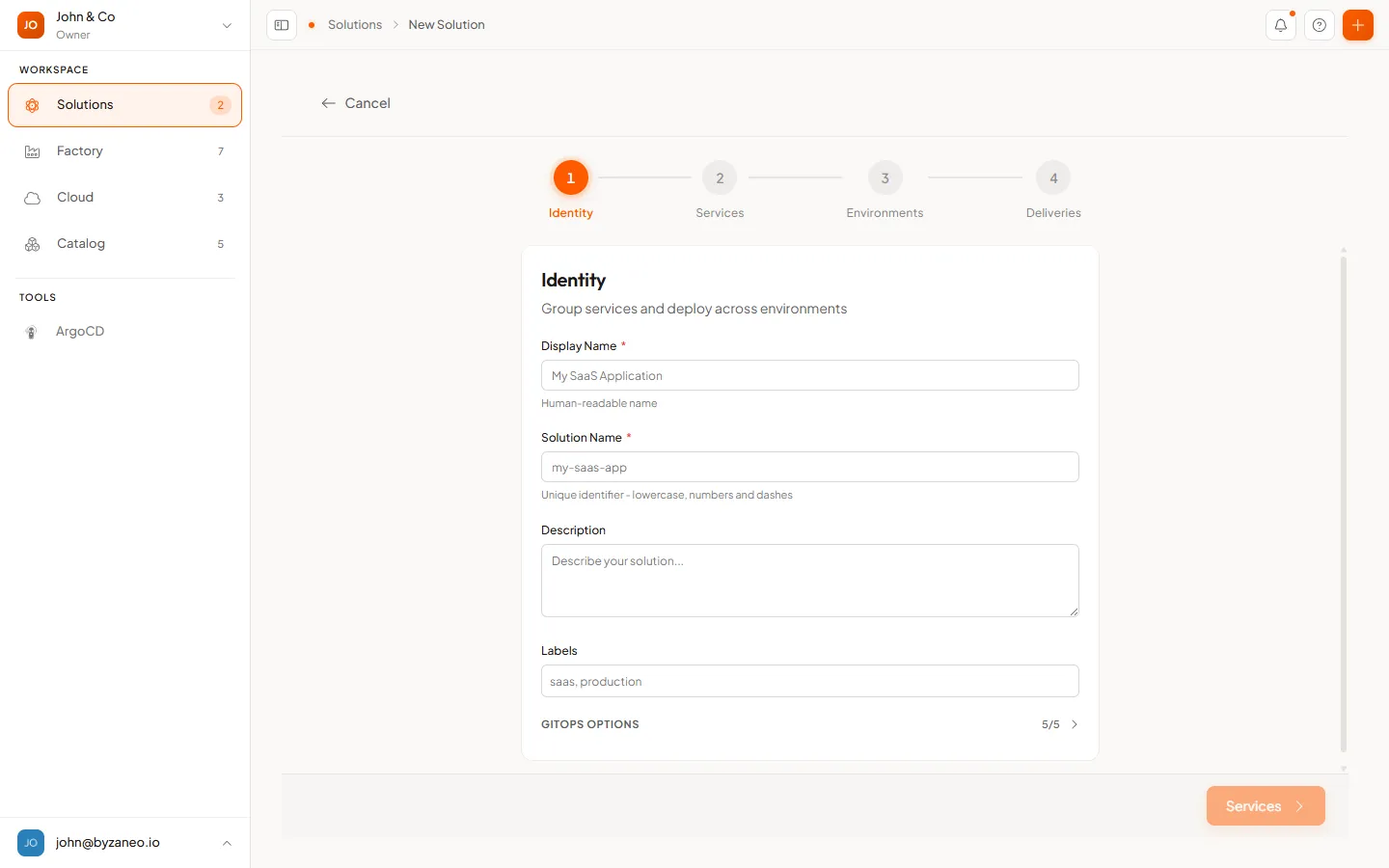
Section titled “4. Deploy with a Solution”A Solution turns one or more services into a running application across environments. From Create, choose New Solution to open the wizard:
- Identity — name your solution and set its GitOps options.
- Services — pick the services to include.
- Environments — choose where it runs (for example a namespace on your cluster).
- Deliveries — review and create.
On creation, h8lio sets up the GitOps delivery and deploys your services to the environments you chose.
5. Watch it run, and go further
Section titled “5. Watch it run, and go further”Your Solution appears in the Solutions pillar, where you follow its health, logs, and activity. From here you can:
- operate your clusters, networking, storage, and backups in Cloud (see the Cloud guides),
- install ready-made applications from the Catalog,
- track costs and set a budget alert on the Subscription page.
That is the whole path: from an empty organization to a deployed application.